
You lose a potential conversion opportunity every time shoppers hesitate to check out their carts.
A countdown timer turns ‘maybe later’ into ‘I need to buy this right now.’ It creates a sense of urgency or FOMO among website visitors, which is what you want when driving sales.
On Squarespace, you can install one within a few minutes, even without coding skills.
Below, you’ll find a step-by-step guide to adding a Squarespace countdown timer to transform passive browsers into shoppers. We will also discuss the best practices for customizing your widget to maximize visitor engagement.
How to Add a Countdown Timer to Squarespace
Build your Squarespace countdown timer in minutes, not hours. Here’s the exact process comprising two phases and zero complexity:
Creating a Webynize Squarespace Countdown Timer
Webynize offers no-code widgets that simplify embedding for even first-time users. Our widgets are easy to customize and blend with your website’s theme.
Follow our step-by-step guide to create a Squarespace countdown timer using Webynize:
- Sign up for Webynize and visit our pricing page to select your preferred subscription.

- Click the +Create Widget button to access our widget library.
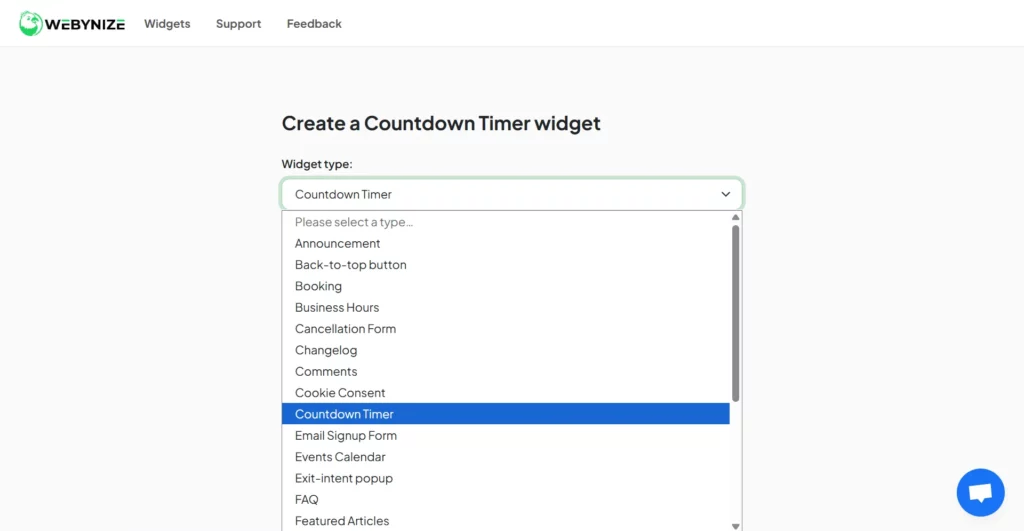
- Select the countdown timer from the dropdown menu and input a custom name for your timer. Click Next to load the widget’s editor panel.
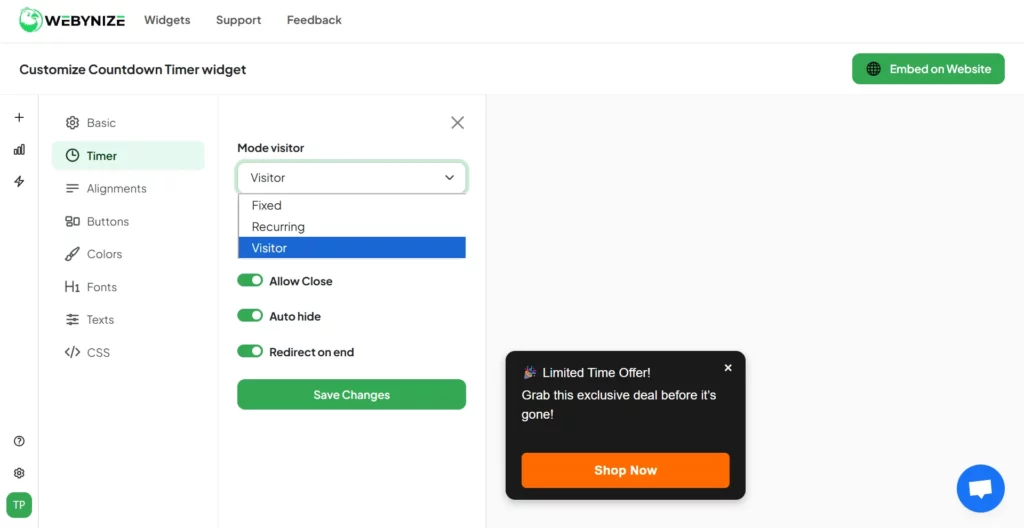
- Set up your countdown timer and specify how often it should appear when visitors open your website.
- Personalize the countdown timer by adjusting the background color and font to match your brand or website theme.

- Click Embed on Website and specify Squarespace as your website platform.
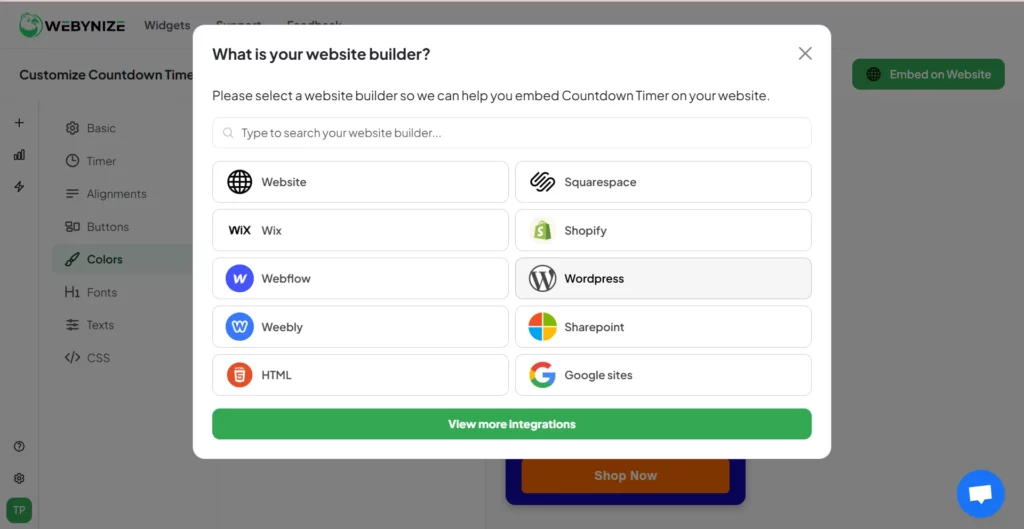
- Hit the Copy code option and copy the generated embed script from the pop-up window that appears.

Adding the Squarespace Countdown Timer to Your Website
Three clicks, one paste. Done. Here’s how to do it:
- Log in to your Squarespace admin account. Note that you need a “Business” account to add third-party widgets on Squarespace.
- Open the web page where you want to add the countdown timer or create a new one.
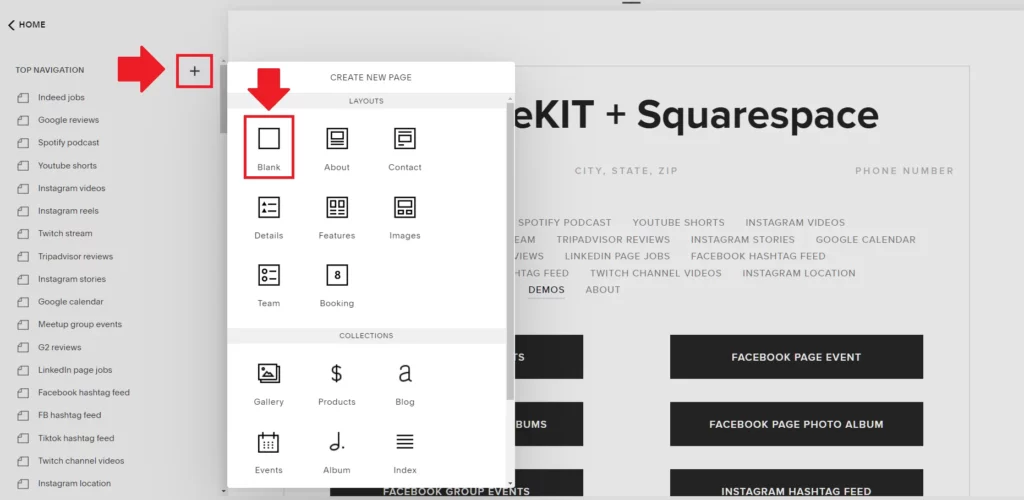
- Create a new block on the web page and select the </> Code option.
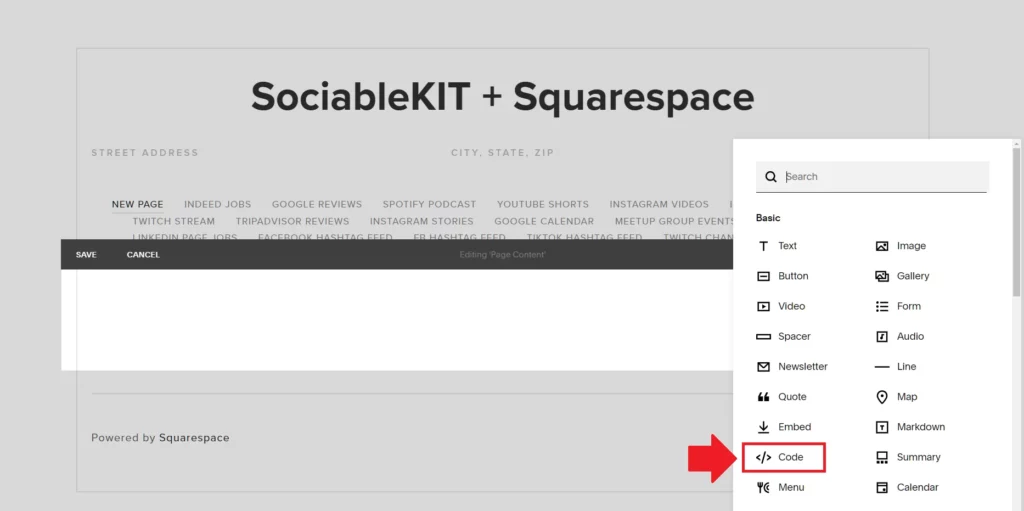
- Paste the embed code in the code block and save the changes.
Your Squarespace countdown timer is now live and visible to your website visitors.
See how easy it is to create a timer using Webynize? Our widget helps you bypass the coding process, so you don’t need to be a proficient web developer.
We leverage over a decade of experience in SaaS and web development to build a mobile-friendly countdown timer widget that delivers a consistent user experience for your visitors.
Create a countdown timer today, just like the 1,000+ other website owners using our widget to drive sales.
Live Demo
Below, you can see a live demo of our Countdown Timer widget.
Our Clients Love Us. Because We Make Sure Their Clients Love Them.
Read what our customers say about transforming their websites with Webynize widgets.
Smart Functions That Power Every Countdown Widget
The right countdown timer blends with your Squarespace website, enhancing its functionality and visual appeal.
Here are the must-have features your widget should have:
- Style Your Timer Your Way: Make the countdown timer yours. Adjust the color, font, and animation to align with your brand’s outlook.
- Responsive by Design: The timer should look perfect on all devices. Whether it’s a mobile phone, tablet, or PC, the widget should adapt flawlessly to the customer’s screen layout.
- Intuitive Display Triggers: Set the countdown timer only to display when it matters. This way, visitors can experience browsing your website with minimal interruptions.
- Built-in Analytics: Monitor your clicks, impressions, and conversions effortlessly to understand your visitors’ behaviors, so you can curate their user journeys for better UX.
- Zero Code Required: Drag, drop, and publish! That’s how simple the setup should be.
- Designed to Feel Effortless: Customized to prompt website visitors to take action and join your subscription list or clear their shopping cart.

Types of Countdown Timers You Can Add to Squarespace
Adding the right type of countdown timer to your website helps maximize visitor engagement, encouraging them to stay longer. Additionally, you could configure the countdown time to influence visitors’ behavior whenever they visit your website.

Consider the following modes when setting up your countdown widget:
- Fixed Countdown Timers: These are set to a predetermined date and time, and the countdown ends simultaneously for everyone, regardless of when they visit your site. For example, you could set your countdown timer to December 31 at 11:59 PM, and the timer will expire just before the new year. Fixed countdown timers are best for event registrations, “Coming Soon” pages, and anniversaries.
- Recurring Countdown Timers: These timers reset at predetermined intervals, such as daily, weekly, monthly, or other custom cycle, to help maintain consistent urgency and keep your site dynamic. They are best for daily/weekly deals and flash sales.
- Visitor-Based Countdown Timers: These are evergreen timers that start individually for each visitor, based on when they opened your website. Your website tracks the countdown timer using the visitor’s stored cookies or URL parameters. Evergreen timers are best for personalized lead generation based on where visitors are in the conversion funnel.
Creative Ways to Use a Countdown Timer
Don’t just slap a countdown timer on a sales page and call it a day. Find ways to use it that your competitors haven’t yet thought of.
Below are a few examples for inspiration:
1. Create a Buzz Around New Products
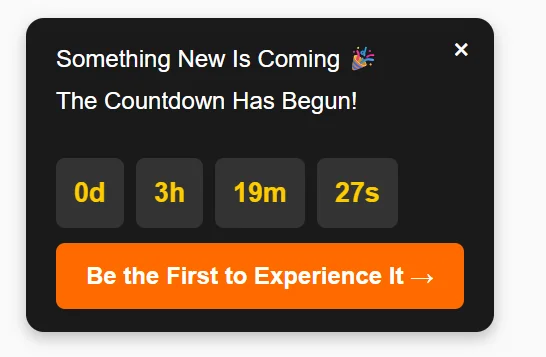
Add a countdown timer to your product teaser page to build anticipation and let website visitors know something’s about to drop.
Even better, run a countdown for “early birds” in which the first 100 pre-orders receive a discount or bonus.
2. Drive Ticket Sales for Upcoming Events

Display a countdown timer to build urgency from the announcement to event day. You could offer a few discounted tickets to create initial excitement, then show that only a few seats remain to create FOMO.
This removes hesitation from potential attendees’ minds as they quickly reserve their spots so they don’t miss out.
3. Host Giveaways to Break Sales Plateaus

Giveaways with countdown timers create urgency to sign up. The giveaways can include product bundles, premium service packages, or exclusive access to company events.
The result? An immediate spike in sales. Additionally, shoppers who sign up will likely keep returning to your website, increasing your organic traffic and engagement.
How Countdown Timers Improve User Engagement
A countdown timer isn’t just about improving your website’s visual appeal (this is a secondary aim), but rather inducing immediate action.
Here is a breakdown of how it boosts user engagement:
- Encourages Action: A countdown timer creates urgency among shoppers, nudging them to commit to an order quickly so they don’t miss out on limited-time discounts or flash sales.
- Boosts Interactions: Live countdown timers make product campaigns feel alive. Shoppers tend to visit your website regularly to see the time left before the product launch. This helps create excitement among shoppers, which increases sign-ups and pre-orders.
- Transparency: Adding a countdown widget to your Squarespace store builds trust as website visitors can track the remaining duration of an offer. This perceived trust encourages potential customers to engage with your business, creating lead generation opportunities.
- Improves Your Website’s UX: You can configure your countdown timer to function just like an exit-intent pop-up, such that it appears based on triggers like visitors interacting with your product listing. This encourages visitors to be more interested in your offers and continue browsing, spending more time on your Squarespace store.

Designing Your Countdown Timer Widget
Your countdown timer will only be effective when you treat it as a conversion generator, not as a decoration.
Here’s how to make your Squarespace countdown timer work for you:
- Brand alignment: Style the countdown timer to blend with your website, not look like an add-on. For example, choose background colors that match your brand theme. Additionally, the text font should be consistent with your site’s typography.
- Placement is Key: Position the countdown timer strategically, such as in the header, footer, or as a pop-up window for maximum visibility. Additionally, the widget’s location should be consistent across all devices.
- Right Timer. Right Moment: Customize countdown timers for different objectives. For instance, a Black Friday sale timer should be different from an event launch timer.
- Include Relevant CTAs: Guide users through their next steps to introduce them to your conversion funnel or inspire action. For instance, you could add a “Shop Now” button near the countdown timer to encourage shoppers to add items to their carts.
- Provide Context Where Needed: Add a tooltips widget to provide additional information about the sales promotion or upcoming product launch, as this helps reduce tickets to your support team.

Frequently Asked Questions (FAQs)
Need more information about adding a countdown timer to your Squarespace store? Let’s answer some common questions below:
Can I Use the Same Timer Across Multiple Pages?
Yes. You can use the same timer across multiple pages.
One way to achieve this is by adding a countdown timer widget to the header or footer section, ensuring it is replicated across your entire website.
How Do I Remove or Update an Expired Countdown Timer?
The best way to remove an expired countdown timer is to delete the associated JavaScript code from your Squarespace website.
However, if you only need to update it, the best countdown widgets let you create new events without altering the embedded script.
Conclusion
Hesitation costs you sales, as visitors bounce off your website. A countdown timer eliminates it and creates urgency. Countdown timers tap into this FOMO, nudging visitors to take action.
You’ve seen the Webynize step-by-step process — it takes a few minutes and zero web design skills to set your countdown timer widget. You can also customize it to blend with your website theme and position it where it converts.
Join 1,000+ ecommerce owners using Webynize to customize countdown widgets and boost sales on their websites. Create your countdown widget in 60 seconds.
We wish you the best of luck with your new countdown timer!


