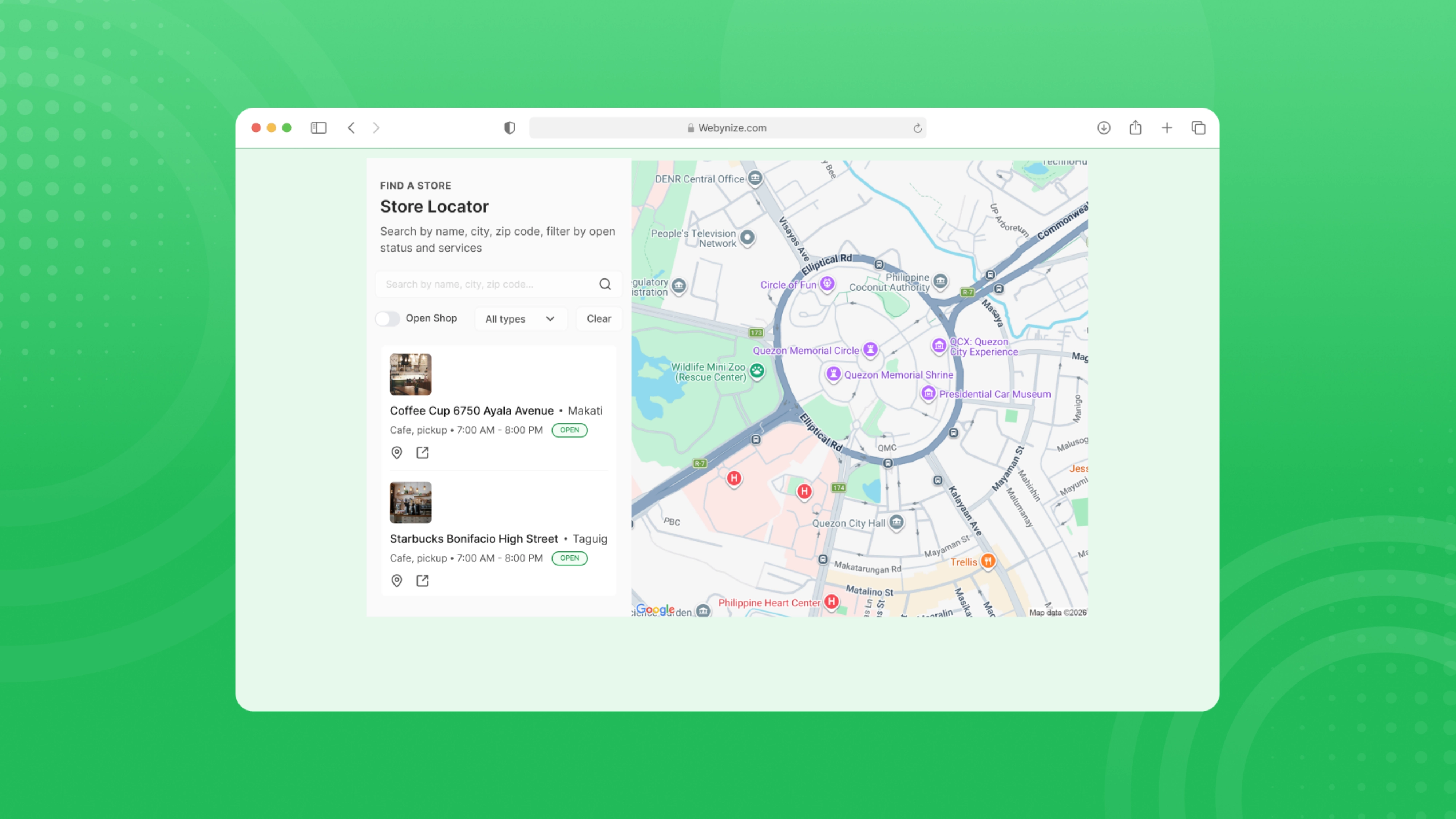
Welcome to our tutorial on how to add a Store Locator to Pivot!
Helps customers easily find your stores on a map right from your website. You can add your locations, and visitors can search, explore, and get directions in just a few clicks.
Whether you want to improve user experience or create a more interactive website, a Store Locator can be valuable.
Add Store Locator to Pivot - Step by Step
This article will walk you through integrating our feedback widget into Pivot.
To add Store Locator to Pivot, follow the steps below.
- Create a Store Locator in Webynize.
- Click "Create widget" button on the top right.
- Select Store Locator in the dropdown option.
- Click Next button.
- Customize the design and data of your Store Locator.
- Click the "Embed now" button.
- On the popup, copy the code.
- Paste the code on Pivot.
Live Demo
Below, you can see a live demo of our Store Locator widget.
What our customers say?
Frequently Asked Questions
Got questions about Webynize widgets? Get quick answers and expert guidance here.
Need Support?
This tutorial has helped show you how to add a Store Locator to Pivot.
If you have any questions or need further assistance, don't hesitate to contact our support team using the chat box on the lower right corner of this page.
Conclusion
Adding a Store Locator can be a simple and effective way to gather valuable insights from your customers and improve the overall user experience on Pivot. We wish you the best of luck with your new Store Locator!
What else can you add?
Add more widgets to your site to improve user experience and increase conversions.


