
Welcome to our tutorial on how to add an FAQ widget to your web project.
Provide quick answers to common queries, enhancing the user experience and reducing support requests.
Whether you want to improve user experience or create a more interactive website, an FAQ can be valuable. This article will walk you through integrating our FAQ widget into your web project.
Can’t read the whole article right now? Go straight to creating your FAQ widget. Our Webynize widget is coding-free, making it easy to set up even for first-time users. Also, enjoy the convenience of styling your FAQ feed, including the font settings and theme appearance, without modifying your website’s CSS files.
Create a Webynize widget today and provide answers to the most commonly asked questions about your products or services!
Add FAQ Widget to Website – Step by Step
Follow our complete guide below for an in-depth guide on how to embed an FAQ widget on your website. The first part outlines how to set up the FAQ widget, and the second part how to paste it on your website.
Creating a Webynize FAQ Widget
Follow these steps to setup and customize the look and feel of your FAQ widget:
- Sign up for Webynize and start your 7-day premium trial. During this period, you can create any of our Webynize widget for free. However, you’ll need a premium subscription to continue enjoying the FAQ widget once the trial period elapses.

- On the top right corner of your user dashboard, click the +Create Widget button to access our add-on library.
- Click on the dropdown menu and select the FAQ Generator widget.

- Provide a custom name for the FAQ widget and click Next to open the editor panel.

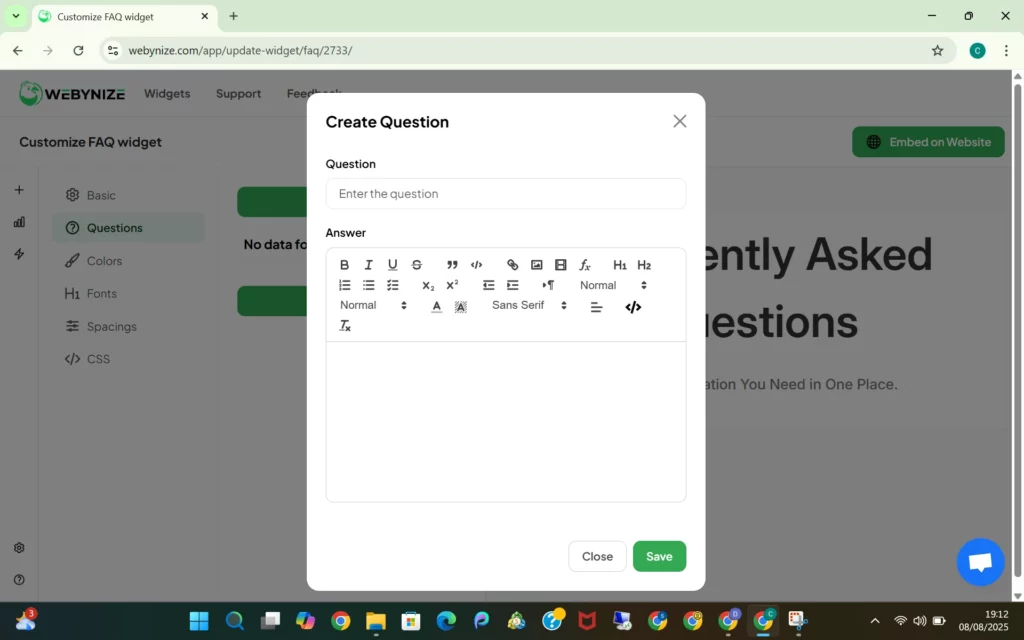
- On the left-hand menu, select Questions, then click Create Question to input the problems and solutions.
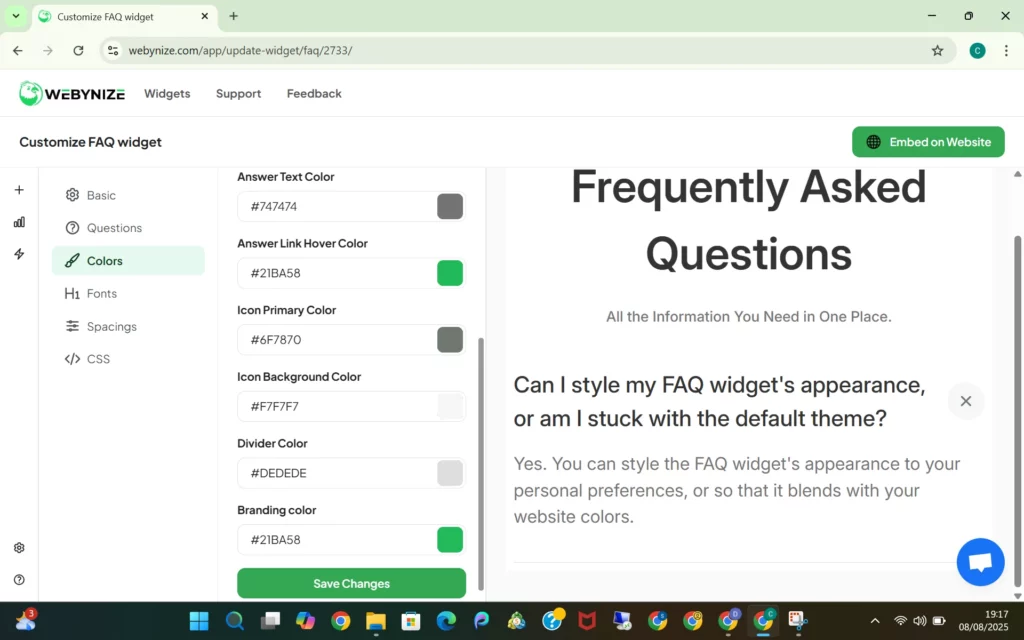
- Customize the FAQ widget’s appearance to complement your website theme. Set your preferred background, question, and answer colors to make the widget stand out. Lastly, click Save to apply the settings to the widget.
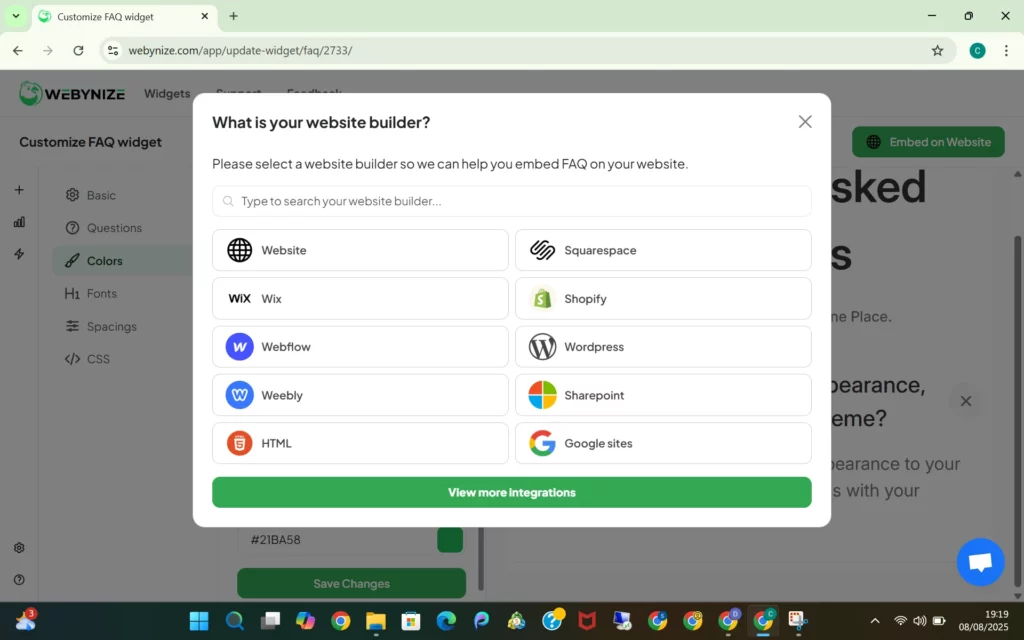
- Click Embed on Website and select your web builder.
- Copy the JavaScript code that appears on the popup.
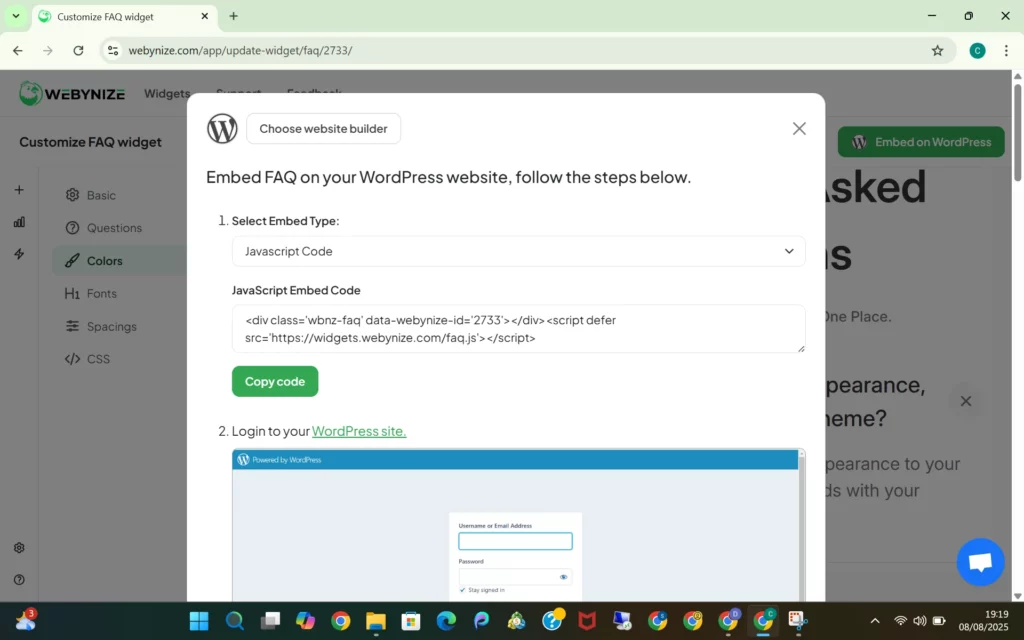
Add the FAQ Widget to Your Website
Next, let’s discuss how to paste the FAQ generator embed code on your website:
- Go to your website admin panel and select the web page where you want to add the FAQ generator.

- Launch the code editor, rich text editor, or code block section depending on the web builder you are using. Here’s an example for WordPress:
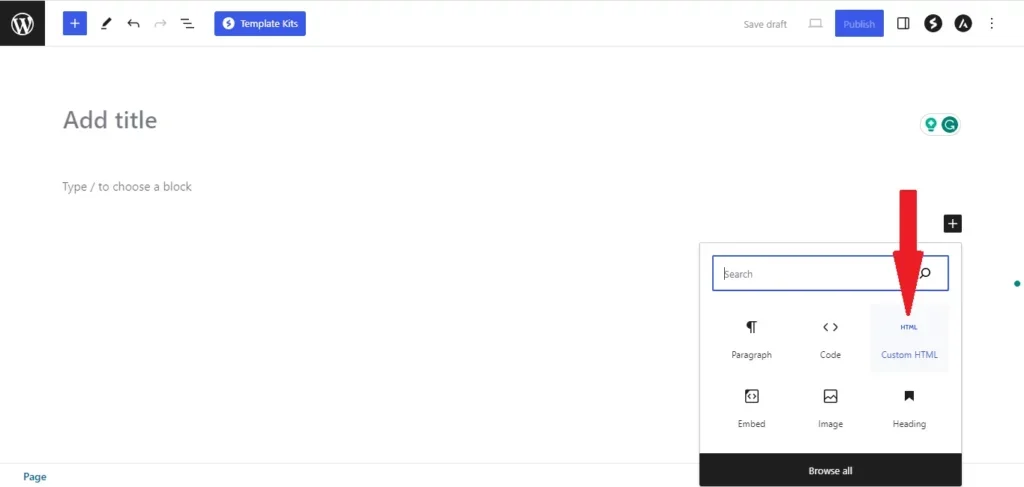
- Paste the JavaScript code you copied from the Webynize embed code generator.
- Save the changes and click Publish so the feature goes live.
See how easy it is to add an FAQ section to your website?
Provide answers to common questions about your products and services to boost visitor engagement and establish your brand as an authority in your sector.
Video Guide: Embed an FAQ Generator on Your Website for Free
Watch our YouTube video below for a step-by-step guide on how to integrate an FAQ generator to your website.
Live Demo
Below, you can see a live demo of our FAQ widget.
Our Clients Love Us. Because We Make Sure Their Clients Love Them.
Read what our customers say about transforming their websites with Webynize widgets.
Why Are FAQs Important?
Previously, many website owners overlooked having an FAQ section, deeming it a repetition of what was discussed within a web page. However, FAQs provide clear, concise answers to potential leads, creating conversion opportunities.
Here are the benefits of adding an FAQ widget to your website:
- SEO Optimization: Incorporating relevant keywords and search phrases into your FAQs and answers increases your website’s visibility to search engines, helping it rank on SERPs.
- Fewer Support Queries: Answering commonly asked questions means website visitors need not contact your support team for clarification, reducing the required human resources. Also, an FAQ section helps you address customer queries even during out-of-office hours.
- Increased Conversions: The FAQ section provides opportunities for plugging your products and inserting internal links to your catalog or service pages, improving your lead generation and conversion rates.
- Boosted User Experience: FAQs help visitors find answers to their questions without having to scroll through numerous pages, improving your website’s UX.
- Authority Building: Providing helpful answers in the FAQ section helps establish your brand as an authority in your niche. It shows that you are so knowledgeable about a topic that you can anticipate and answer questions in advance.

How Does an FAQ Generator Widget Work?
An FAQ generator widget lets you create a list of commonly asked questions and their answers, and embed them into your website. You could type the questions manually or prompt the widget to suggest popular questions based on your content.
Embedding the FAQ questions is usually more convenient as you save time otherwise spent coding.
Additionally, an FAQ generator widget provides greater flexibility in where you place the FAQ section. For example, you could embed the FAQ generator widget on a dedicated page so it is part of your resources, or add the questions to specific web pages.

Advantages of Using Our AI FAQ Generator
Webynize is the #1 rated widget for adding an FAQ section to your web pages and for good reasons:
- Code-Free: Our FAQ generator has a built-in embed code engine that creates the script you’ll paste on your website. This means you don’t need coding proficiency to create an FAQ widget.
- Flexible Customizations: You can style the FAQ feed to your preference, including selecting the widget color and font settings.
- Compatibility: Our FAQ generator supports all major web builders, including HTML, Shopify, SharePoint, Squarespace, and WordPress.
- Advanced Analytics: You can monitor how website visitors interact with the FAQs, including user journeys. This provides actionable insights on refining the questions and answers to boost engagement.
- Responsive Support: Clients often rate our FAQ widget highly because of our dedicated customer support service that responds to tickets timely and helps you resolve any integration issues promptly.

Need Support?
This tutorial has helped show you how to add a FAQ widget to your web project for FREE!
Still, our support team is here to help should you have additional questions about integrating an FAQ generator into your website.
Use the live chat feature (click on the chat icon on the bottom right of your screen) to jump on a quick one-on-one call with one of our support members.
Alternatively, send your inquiries to [email protected]. We respond within 24 hours on weekdays and 48 hours on weekends.

Frequently Asked Questions (FAQs)
Got pending questions?
Here are answers to commonly asked questions about FAQ generators.
Can the Widget Customize Questions for Different Pages?
Yes. The FAQ widget can customize questions for different pages. This means you can add FAQs to all relevant blogs and service pages to maximize visitor engagement.
How Can the FAQ Widget Boost Conversions and Engagement?
The FAQ widget can boost conversions and engagement by answering questions often asked by high-intent customers. You could then include links to related blogs or service pages, creating opportunities for introducing visitors to your conversion funnel.
Is the FAQ Generator Suitable for All Business Types?
Yes. The FAQ generator is suitable for all business types. Remember, there will always be first-time visitors or customers who know very little about your website or products, regardless of your niche. The FAQ section creates an opportunity for engaging such potential leads by answering questions relevant to their search intent.
How Can I Customize the Look and Feel of the Widget?
You can customize the look and feel of your FAQ widget by using colors related to your brand. For example, our Webynize FAQ generator lets you personalize the widget’s appearance, including the background, question text, and description text colors. Also, you can include custom CSS to add animations and features to the FAQ widget.
What Should I Do If the FAQs Are Not Displaying Correctly?
The best solution when the FAQs are not displaying correctly is to repeat the embedding process. You might have altered the embed code involuntarily or added incorrect CSS, distorting the feed. Also, confirm that the questions and answers have enough padding space so they don’t overlap.
Conclusion
Adding a FAQ widget can be a simple and effective way to gather valuable insights from your customers and improve the overall user experience of your web project.
It is also an effective way to address customer inquiries and concerns, especially when your support team is out of the office.
Create a Webynize widget and showcase an engaging FAQ section that quickly grabs visitors’ attention and boosts your website’s dwell time.
We wish you the best of luck with your new FAQ widget!


