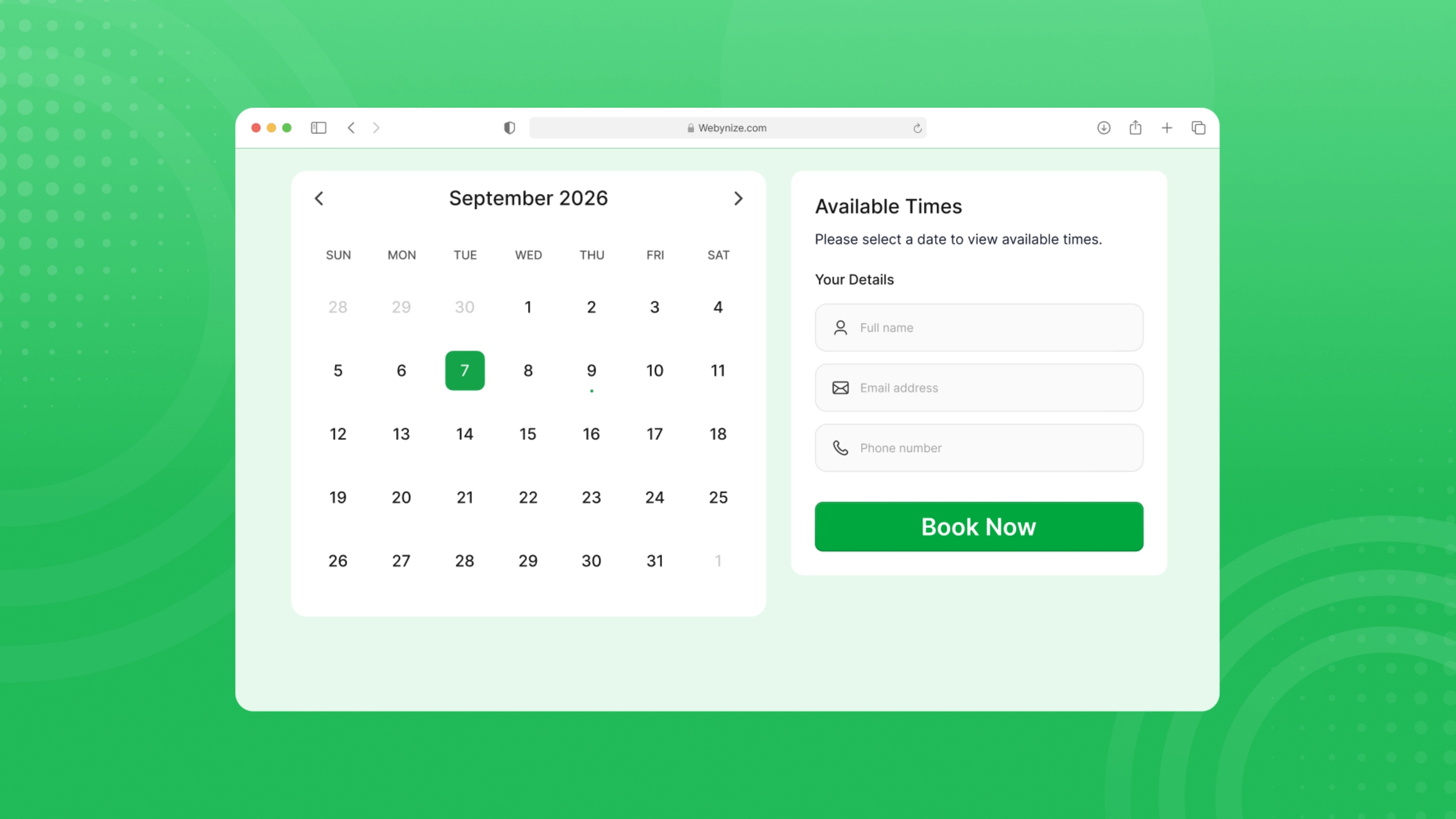
Welcome to our tutorial on how to add a Booking to Pinegrow!
Allow users to book appointments, consultations, or meetings directly on a website. Perfect for coaches, service providers, sales teams, and freelancers.
Whether you want to improve user experience or create a more interactive website, a Booking can be valuable.
Add Booking to Pinegrow - Step by Step
This article will walk you through integrating our feedback widget into Pinegrow.
To add Booking to Pinegrow, follow the steps below.
- Create a Booking in Webynize.
- Click "Create widget" button on the top right.
- Select Booking in the dropdown option.
- Click Next button.
- Customize the design and data of your Booking.
- Click the "Embed now" button.
- On the popup, copy the code.
- Paste the code on Pinegrow.
Live Demo
Below, you can see a live demo of our Booking widget.
What our customers say?
Frequently Asked Questions
Got questions about Webynize widgets? Get quick answers and expert guidance here.
Need Support?
This tutorial has helped show you how to add a Booking to Pinegrow.
If you have any questions or need further assistance, don't hesitate to contact our support team using the chat box on the lower right corner of this page.
Conclusion
Adding a Booking can be a simple and effective way to gather valuable insights from your customers and improve the overall user experience on Pinegrow. We wish you the best of luck with your new Booking!
What else can you add?
Add more widgets to your site to improve user experience and increase conversions.


